Avoid Middleware: Integrate WhatsApp With Your CRM for SMBs
SmartFlow Team
AI-powered business operating system
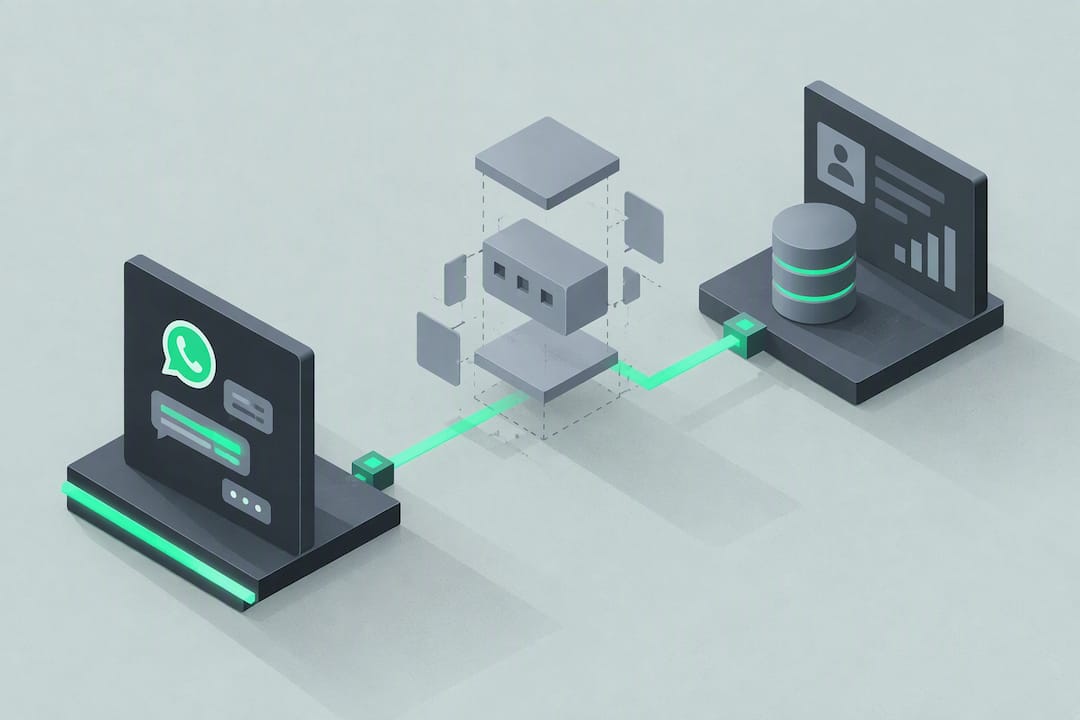
Yes, you can integrate WhatsApp with your CRM, and for most small businesses the fastest route is a native connector or a WhatsApp-enabled inbox platform built on the WhatsApp Business API. Middleware like Zapier or Make is a fallback for CRMs without a direct connector. Before touching any tool, get Meta Business Manager verification done, format your phone number in E.164, and set up consent capture. From there, a native connector or messaging inbox will get you two-way logging and automation running fastest.
TL;DR:
- Most small businesses should use a native WhatsApp connector or a WhatsApp-enabled inbox platform built on the WhatsApp Business API for quick, reliable integration.
- Middleware like Zapier or Make is a fallback, but it involves more testing complexity and maintenance, making native integrations preferable when available.
- A staged rollout starting with a single contact and automation helps identify mapping, consent, or formatting issues before full deployment.
- Consistent phone number normalization, verifying opt-in records, and proper field mapping prevent duplicate contacts and ensure smooth data sync.
Table of Contents
- What You Need Before You Integrate WhatsApp With a CRM
- Which Integration Path Fits Your Business: Connector, Inbox, or Middleware?
- What Does the Actual Setup Process Look Like?
- How Do You Sync Data Without Creating Duplicate Contacts?
- When Do You Need Template Messages, and How Does Approval Work?
- What Automations Should You Build First?
- What Should You Test Before Rolling This Out Widely?
- What Are the Most Common Integration Problems, and How Do You Fix Them?
- How SmartFlowCRM Handles WhatsApp Without the Stitching
- What This Guide Gets Right (and What Most Advice Skips)
- Ready to Connect WhatsApp Without Building It Yourself?
- Sources
- FAQ
What You Need Before You Integrate WhatsApp With a CRM
The single biggest reason WhatsApp CRM projects stall in week one is that someone tries to connect the wrong WhatsApp product. The consumer app and the small Business App don’t support webhooks or programmatic messaging, so the WhatsApp Business API is the only version that gives a CRM the infrastructure it needs to send, receive, and log messages automatically.
Before you start connecting anything, get these four things in place:
- Meta Business Manager account with completed business verification, since most CRM connectors and inbox platforms require it before they’ll issue API access.
- A dedicated phone number for WhatsApp Business, formatted in E.164 (country code plus number, no spaces or symbols) so your CRM can match it against existing contact records.
- A documented opt-in process, because WhatsApp’s commerce policy and, in many markets, GDPR both require proof that a contact agreed to be messaged.
- A field in your CRM to store the opt-in timestamp and consent source, not just a checkbox, since audits ask when and how consent was captured.
Pro Tip: Verify your business number ownership before you request API access. Meta frequently rejects verification requests over mismatched business names or unverified domains, and that single step causes more delays than any technical configuration.
Skipping phone number normalization is the most common early mistake. A contact saved as “07911 123456” in your CRM and “+447911123456” in WhatsApp are the same person to a human, but they’re two different records to a database, which sets up duplicate contacts before you’ve sent a single message.
Which Integration Path Fits Your Business: Connector, Inbox, or Middleware?
Three paths lead to a working WhatsApp CRM integration, and picking the right one depends on your CRM’s existing connectors, your team size, and how much custom logic you need.
- Native connector. If your CRM already offers a WhatsApp integration under its app marketplace or settings menu, this is almost always the fastest option. Authorization typically runs through OAuth and completes in well under a minute, since the CRM vendor has already built the field mapping and webhook handling for you.
- Third-party inbox or messaging platform. These tools sit between WhatsApp and your CRM, giving your team a shared inbox with routing rules, canned replies, and built-in automation. Many of these platforms ship with ready-made connectors to popular CRMs, which makes them a strong middle ground when you want team collaboration features the CRM itself doesn’t offer.
- Webhook or middleware (Zapier, Make, or custom code). This is the fallback when your CRM has no native option and no inbox platform covers it. Middleware works, but expect to spend real time on testing, since webhook payloads vary in structure and a missing field can silently break a sync.
Use this checklist to decide fast:
- Does your CRM list WhatsApp under its native integrations? If yes, start there.
- Does your team need a shared inbox with multiple agents replying to the same number? Lean toward an inbox platform.
- Does your CRM lack both a connector and an inbox integration, or do you need custom logic (like routing by deal value)? That’s when middleware earns its complexity.
Whichever path you choose, a CRM comparison resource like Salesforce vs Zoho vs HubSpot is worth a quick look, since connector availability differs meaningfully between platforms and can change which path makes sense for you.
What Does the Actual Setup Process Look Like?
Every WhatsApp CRM integration, regardless of vendor, follows roughly the same sequence. Knowing the pattern helps you troubleshoot when something goes sideways, because you’ll know which step failed.
- Authorize the connection. This is either an OAuth login screen or an API key you paste into your CRM’s integration settings. At this point, confirm the Business Manager account shown matches the one you verified earlier, not a duplicate or personal account.
- Map the WhatsApp number to an inbox or agent. Decide who owns incoming messages: a shared inbox, a specific sales rep, or a round-robin queue. Enable conversation logging here so message threads write into the CRM’s activity timeline automatically.
- Create and map CRM fields before pushing any data. This step gets skipped constantly, and it’s the reason integrations “work” on day one and quietly break on day ten. Building the target properties first and matching their data type to the incoming payload (text, phone, date) prevents fields from failing to populate.
- Enable automations and roll out in stages. Turn on one or two automations first, such as new-contact creation, before layering in template sends and stage-based triggers.
While you work through this sequence, watch for a few operational details that decide whether the integration actually holds up:
- Conversation logs should appear on the contact’s timeline, not buried in a separate messages tab nobody checks.
- New WhatsApp contacts should land in the right pipeline stage automatically, not in a generic “unsorted” bucket.
- Team members need clear ownership rules so two reps don’t reply to the same customer with conflicting information.
Rolling out to your whole contact list on day one is how small mapping errors turn into a cleanup project. Start with a single number, a single automation, and a small test group.
How Do You Sync Data Without Creating Duplicate Contacts?
A working WhatsApp integration typically syncs four types of data into the CRM: contact details, conversation logs, labels or tags, and custom fields you’ve built specifically for WhatsApp activity. Conversation logs are the part most owners underestimate. Done right, every inbound and outbound message writes into the contact’s timeline in your CRM, giving sales reps full context without switching apps.
The part that determines whether this works cleanly is deduplication, and the fix is simpler than most teams expect. Normalize every phone number to E.164 format and use it as the primary matching key across both systems. A number stored as “(555) 123-4567” in your CRM and “+15551234567” in WhatsApp will never match automatically, and you’ll end up with two contact records for the same customer, split conversation history, and a sales rep working from half the picture.
Before you go live, run through this short list:
- Confirm your CRM’s phone field format matches WhatsApp’s E.164 output, and fix any legacy records that use local formatting.
- Create custom properties in the CRM before your first sync, and set the data type (text, number, date) to match what the API sends.
- Decide on sync direction: does WhatsApp write to the CRM only, or does CRM data (like deal stage) also trigger WhatsApp messages?
- Choose sync frequency. Real-time sync suits sales conversations where speed matters; batched sync (every few minutes) is fine for reporting-only use cases and puts less load on your systems.
Get the phone number format wrong at the start, and every downstream automation, from lead routing to template sends, inherits that error.
When Do You Need Template Messages, and How Does Approval Work?
WhatsApp only lets businesses send free-form messages within 24 hours of a customer’s last message. Outside that window, you need a pre-approved template message, and this single rule shapes almost every automation you’ll build from your CRM.
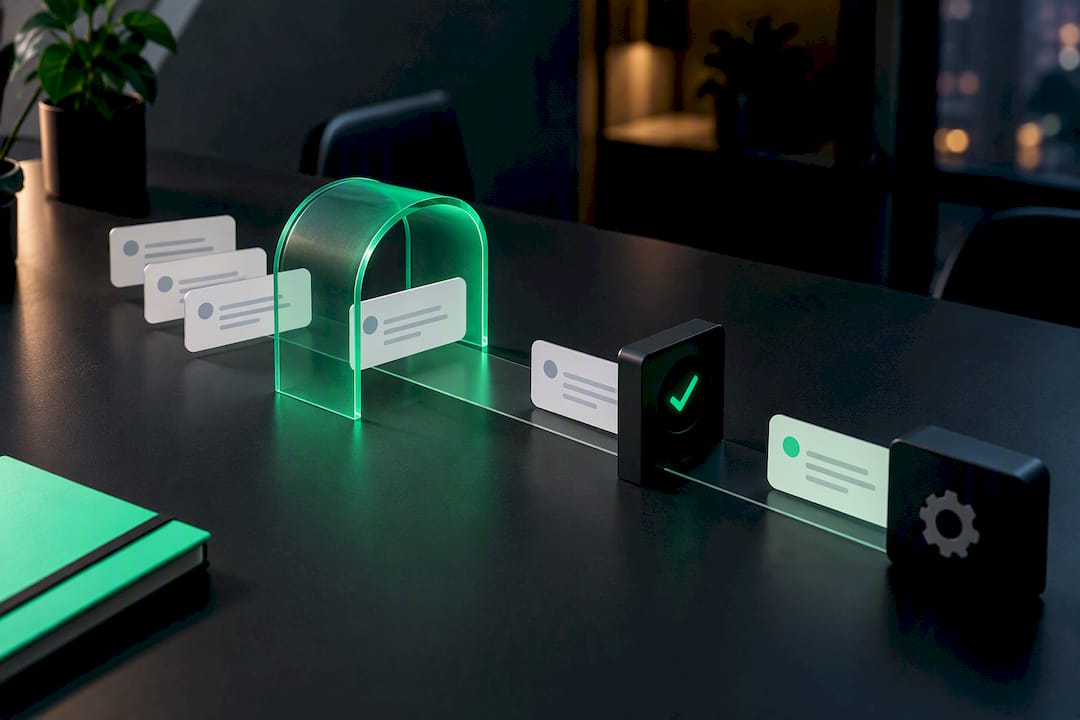
Meta reviews templates before they go live, usually checking for promotional content disguised as a transactional notice, since the two categories are treated differently. A shipping confirmation or appointment reminder is transactional and gets more lenient treatment. A discount offer or product announcement counts as promotional and faces stricter review.
A few practical rules to build into your CRM workflows:
- Any automation firing outside the 24-hour window (like a follow-up three days after a lead goes cold) must use an approved template, not a free-text message.
- Store the opt-in timestamp as its own CRM field, captured at the exact moment consent was given, since this is often what a compliance audit asks for first.
- Design re-engagement flows to trigger inside the 24-hour window whenever possible, since that gives you free-form flexibility instead of template constraints.
- Keep a running log of which templates are approved and for what purpose, so sales and marketing don’t submit near-duplicate templates that get rejected for redundancy.
What Automations Should You Build First?
Once the connection is stable, automation is where the integration starts paying for itself. A few recipes cover most of what small businesses actually need:
- New WhatsApp contact creates a CRM lead. The moment someone messages your business number for the first time, a new lead record gets created and routed to the right sales rep or team, with the full message history attached.
- Deal stage change triggers a WhatsApp update. When a deal moves from “quote sent” to “won,” a template message can notify the customer automatically, cutting down manual follow-up.
- Support ticket creation or resolution sends a confirmation. A quick automated message confirming a ticket was received, or a short satisfaction survey after resolution, closes the loop without a rep lifting a finger.
- AI-assisted qualification filters leads before they reach a human. Teams using AI agents for first contact report fewer wasted conversations reaching sales, since the agent screens intent and budget before a rep ever gets involved.
Pro Tip: Track automation impact by tagging leads by source inside your CRM (WhatsApp versus email versus web form). Within a month you’ll have a clear picture of which channel actually converts, instead of guessing.
What Should You Test Before Rolling This Out Widely?
Before you open the integration to your whole team, run through a short but non-negotiable checklist:
- Send a two-way test message. Message the business number from a personal phone, reply from the CRM inbox, and confirm both messages appear in the contact’s timeline in order.
- Test deduplication with a repeat contact. Message from a number already in your CRM under a different format, and confirm it merges with the existing record instead of creating a duplicate.
- Verify property mapping with real data. Check that custom fields populate correctly, not blank or mismatched, especially date and number fields, which fail silently more often than text fields.
- Send a template message and confirm delivery. This checks both template approval status and the connection between your CRM trigger and WhatsApp’s API.
- Confirm the opt-in timestamp is being captured and stored correctly for every new contact, not just the ones added manually.
Start with a pilot group of five to ten contacts before expanding. A staged rollout catches mapping issues and consent errors while the blast radius is still small.
What Are the Most Common Integration Problems, and How Do You Fix Them?
Most WhatsApp CRM issues trace back to one of four causes, and each has a quick fix once you know where to look.
- Phone format mismatch. If contacts are duplicating or not matching, run a normalization script or CRM workflow to convert every stored number to E.164 format in bulk.
- Missing opt-in records. If you can’t find a consent timestamp for existing contacts, treat them as unconfirmed and run a re-permission campaign inside the 24-hour window rather than assuming consent.
- Property type conflicts. A field expecting a number but receiving text (or vice versa) fails without an error message in many CRMs. Audit your field mappings against a sample payload to catch this before it scales.
- Unexplained sync gaps. When messages aren’t logging at all, check your middleware or webhook logs first. If the payload never arrived, the issue is upstream; if it arrived but didn’t map, the issue is in your field configuration. Contact platform support only after you’ve ruled out your own mapping.
How SmartFlowCRM Handles WhatsApp Without the Stitching
Most of the friction described above comes from connecting separate tools that were never designed to talk to each other. SmartFlowCRM built WhatsApp Automation directly into the platform, so conversations land in a unified inbox alongside email and SMS, with no middleware layer to maintain or debug.
New WhatsApp contacts flow straight into custom pipelines, and the built-in phone system keeps calls and messages tied to the same contact record. AI-assisted qualification screens incoming leads before they reach a rep, which cuts down on the manual triage that eats up a sales team’s morning. Because contacts, conversation logs, and pipeline stage all live in one system, there’s no separate deduplication pass to run after the fact.
What This Guide Gets Right (and What Most Advice Skips)
Most WhatsApp integration content treats the technical connection as the hard part. It isn’t. OAuth authorization takes a minute; getting your data model right takes days if you skip the prep work. The real risk sits in phone number formatting, field type mismatches, and consent tracking, and those three issues cause more support tickets than any API limitation ever will.
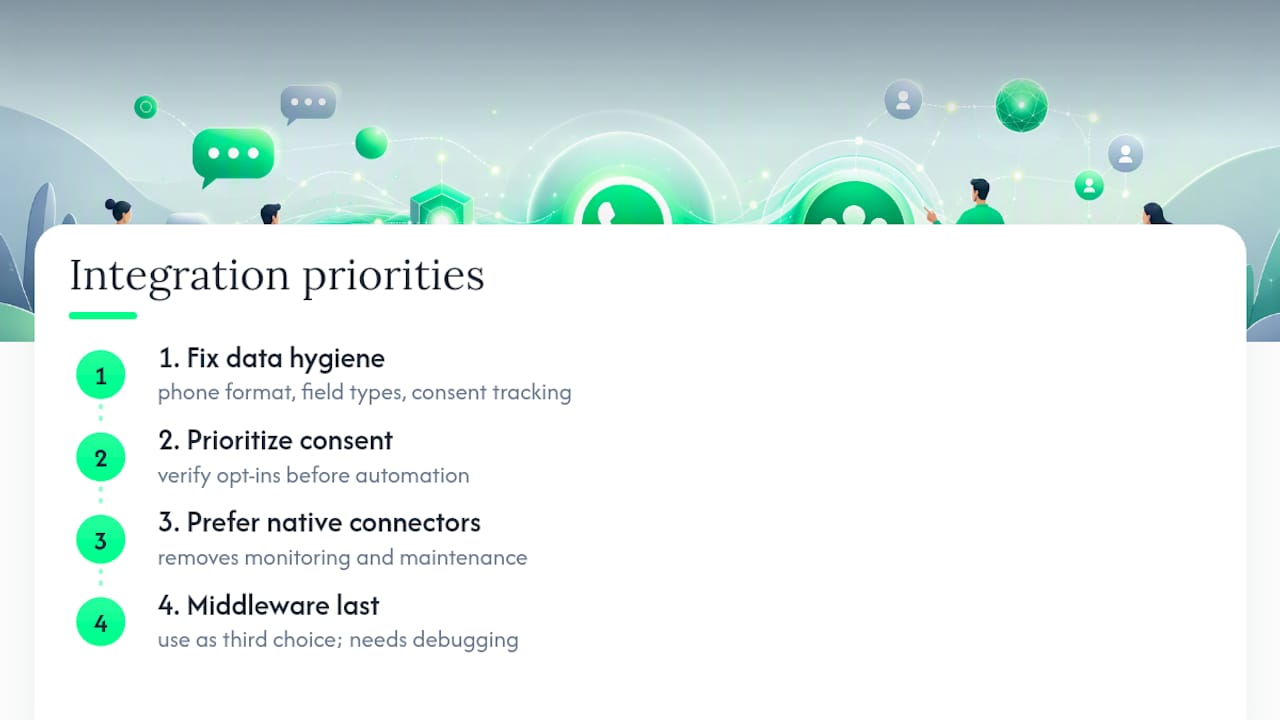
Conventional advice also tends to treat middleware as the default answer, probably because Zapier and Make show up in every tutorial. In practice, middleware should be your third choice, not your first. It adds a layer you have to monitor, test, and eventually debug when Meta changes something upstream. A native connector or a purpose-built inbox platform removes that maintenance burden entirely for most small businesses.
If you take one thing from this guide, prioritize consent tracking before automation. A brilliant automation built on unverified opt-ins is a compliance problem waiting to surface, not a feature. Get the boring data hygiene right first, then build the automations everyone actually wants to talk about.
— Chris
Ready to Connect WhatsApp Without Building It Yourself?
Every path described above, native connectors, inbox platforms, middleware, involves stitching together tools that weren’t built for each other. SmartFlowCRM skips that step entirely: WhatsApp Automation, a unified inbox, custom pipelines, and a built-in phone system all run inside one platform, so there’s no webhook to babysit and no separate deduplication pass to run.
That means:
- WhatsApp conversations log automatically to the contact record, no middleware or field mapping project required.
- AI-assisted qualification filters leads before they hit your sales team’s inbox.
- Custom pipelines track WhatsApp-sourced leads through the same stages as every other channel.
- Plans include features designed to support growth without requiring pricing renegotiations.
If you want to see it running with your own numbers, start with the Starter plan at £130 per month, or check the Done For You option if you’d rather have the setup handled for you. Either way, the next step is the same: pick a plan and get your WhatsApp number connected this week.
Sources
For deeper technical detail beyond what’s covered here, the WhatsApp Business API integration walkthrough covers native connectors and field mapping in more depth. The complete integration guide includes a useful field-sync reference table, and Turbodev’s overview of WhatsApp as a sales inbox is worth a look for automation ideas beyond what’s listed here.
- WhatsApp Business API Integration With Your CRM (Working Setup)
- How to Connect WhatsApp to Your CRM: Complete Integration Guide
FAQ
Which CRM Is Best for Integrating With WhatsApp?
The best CRM for WhatsApp is one with a native connector or a built-in messaging inbox, since that avoids middleware entirely. SmartFlowCRM includes WhatsApp Automation and a unified inbox as built-in features rather than an add-on connector, which removes the extra setup layer that standalone CRMs often require.
Which Free CRM Has WhatsApp Integration?
Several free-tier CRMs offer basic WhatsApp connectors, but free plans commonly cap message volume, automation rules, or the number of connected numbers. Check the specific platform’s current terms before relying on a free tier for anything beyond light testing, since limits change often.
Can WhatsApp Integrate With Salesforce?
Yes, Salesforce supports WhatsApp integration through the WhatsApp Business API, either via Salesforce’s own connectors or third-party middleware. The setup still requires Meta Business Manager verification and the same field mapping and deduplication work described above, regardless of which CRM you’re connecting.
What Is a WhatsApp CRM Tool?
A WhatsApp CRM tool is software that connects WhatsApp Business messaging directly to customer records, so conversations, contact details, and deal history live in one place instead of scattered across separate apps. It typically includes conversation logging, automated triggers, and lead routing, all built on top of the WhatsApp Business API.
Recommended
Ready to See What SmartFlow Can Do?
Try SmartFlow free and see how it helps small businesses like yours save time and win more customers.
Start Free Trial